Platforms · LG TV
Install Nitora IPTV on your LG TV.
Get Nitora IPTV from the LG Content Store (listed as iTerala IPTV until the 1.3 update), sign in with your own service, and you’re watching in minutes.
Which TVs can install it
LG offers Nitora IPTV to TVs running webOS 23, 24, 25, 26 and 27, in the countries where LG makes it available. Older webOS versions can’t install it today.
- Platform
- LG smart TVs, webOS 23 or newer
- Store
- LG Content Store (shown on the TV as Apps)
- Listing
- iTerala IPTV, by iTerala
- Price
- No charge, no in-app purchases
- Version
- 1.2.0 Available
- Interface
- English
- Needs
- An internet connection and your own IPTV service
Why Nitora IPTV on LG TV
-
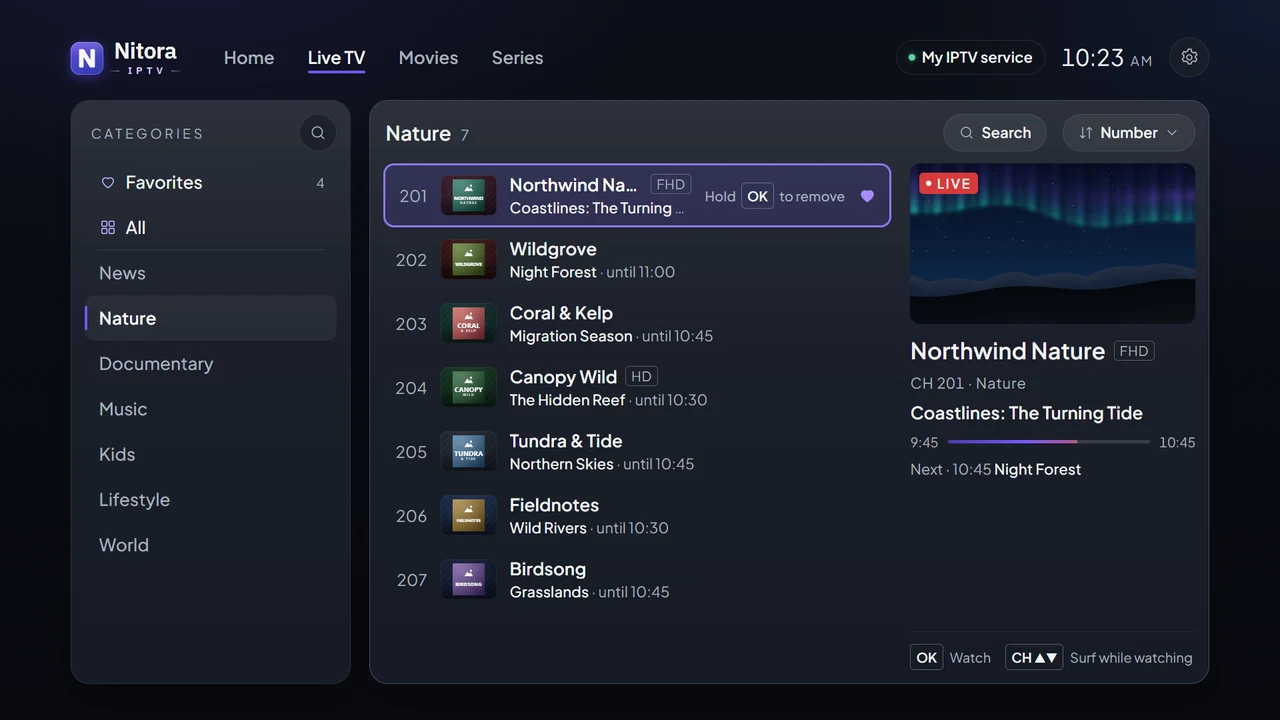
Live TV, Movies and Series
Everything your Xtream Codes service includes, in one interface.
-
Remote-first
Arrow keys, OK and Back on every screen, plus the Magic Remote pointer.
-
Subtitles and audio tracks
Pick tracks while you watch; optional OpenSubtitles with your own key.
-
No account, no ads
Your login stays on the TV. Nothing to sign up for.
Installation steps
There’s nothing to download on a phone or computer: Nitora IPTV installs directly on the TV.
-
Connect the TV to the internet
Nitora IPTV and your IPTV service both need a working connection.
-
Open Apps
Press Home on the remote and select Apps, the LG Content Store.
-
Search for “iTerala”
Press the search icon in the upper-right corner, type iTerala and choose Search. Until the 1.3 update, Nitora IPTV is listed under its former name: iTerala IPTV, by the seller iTerala.
-
Install
Select the listing and choose Install. When it’s finished, choose Launch, or open iTerala later from your apps.
-
Add your service
On first launch, choose Add Service and enter the details from your provider. The setup guides walk you through it.
These steps follow LG’s own guide, LG TV – How to Install or Delete Apps (lg.com). LG writes its steps for webOS 22, and menus can differ slightly between TV models and years.
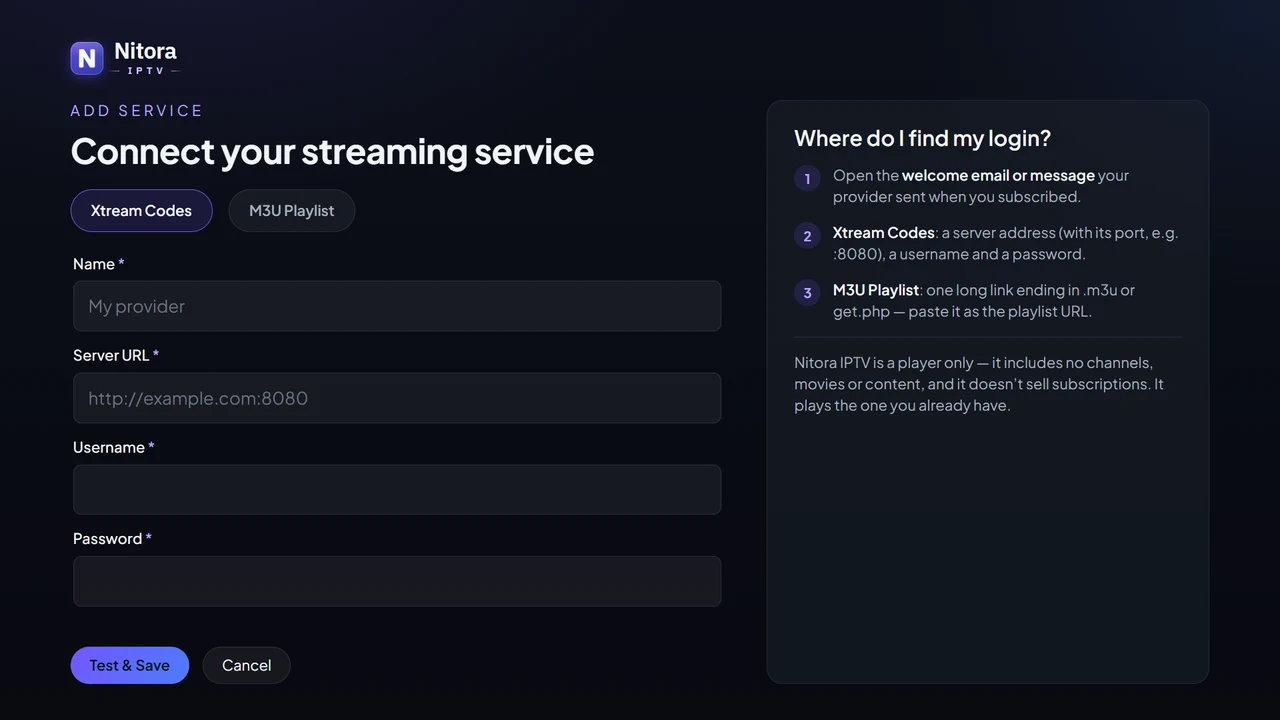
Set up your service
Choose the guide that matches what your provider gave you.
Remote controls
Standard remote
Use the ▲ ▼ ◀ ▶ arrows to move, OK to select and Back to go back. On the Home screen, Back asks before closing the app.
Magic Remote pointer
Point at anything to highlight it and click to select. You can also use the pointer on the TV’s on-screen keyboard when you type your service details.
Troubleshooting
The most common questions from LG TV owners.