Getting started · Option 1
Set up Nitora IPTV with an Xtream Codes login.
The most common way to connect. It gives you Live TV, Movies and Series from your provider.
What you need
Three details from your IPTV provider, usually in the email you got when you subscribed:
- Server URL
- Sometimes called the host or server. Often ends with a port number, like
:8080. (MAC-address “portal” logins aren’t supported.) - Username
- The account name your provider created for you.
- Password
- The password for that account. Not the password for your provider’s website, if it’s different.
Add your service
-
Open Add Service
The first time you open Nitora IPTV, Home shows No services added: choose Add Service. Later, open Settings (⚙, top right), go to the Xtream Codes tab (called Services from version 1.2) and choose + Add service.
-
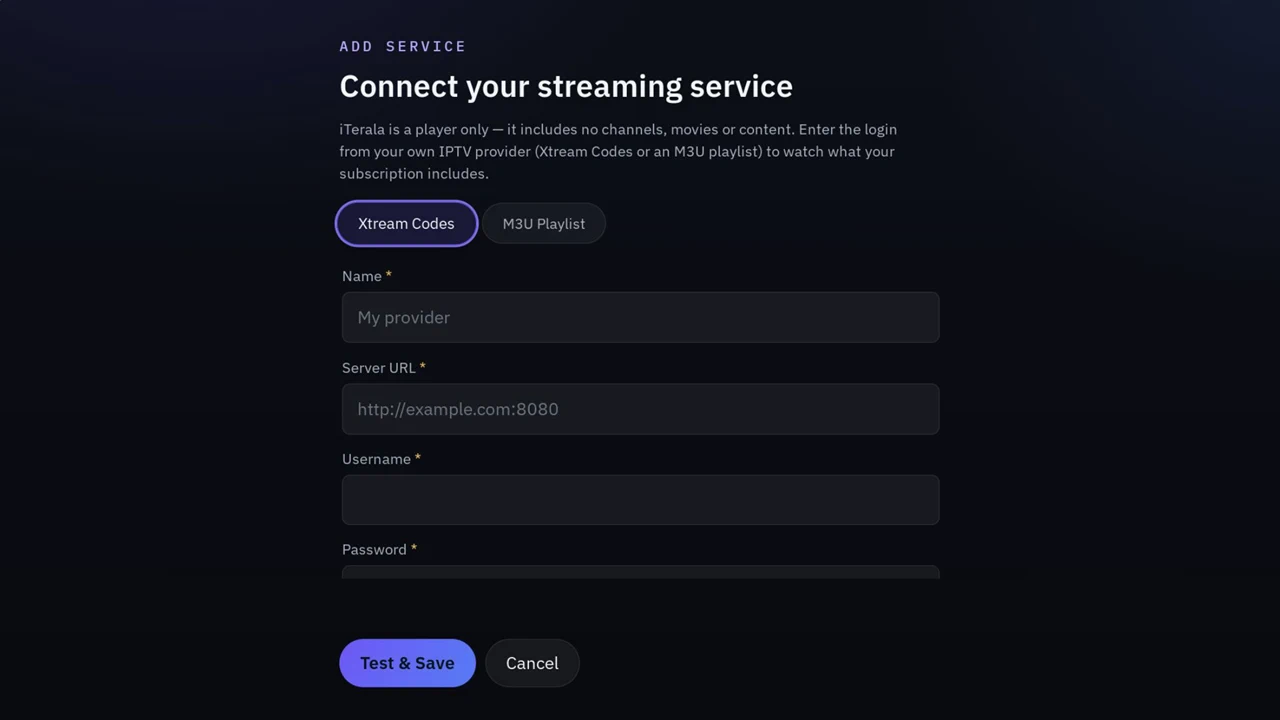
Keep “Xtream Codes” selected
It’s the first option at the top of the form.
-
Name the service
Any label you’ll recognize, such as Living room TV service. It’s only shown inside Nitora IPTV.
-
Enter the server URL
Type it exactly as your provider wrote it, including the port, for example
http://tv.example.com:8080. If you leave outhttp://, Nitora IPTV adds it. If your provider’s address starts withhttps://, type that. -
Enter your username and password
Both are case-sensitive:
Abcandabcare different. Spaces before or after are removed for you. -
Choose Test & Save
Nitora IPTV checks the details with your provider. When it says Connected (usually “Connected — Active”), the service is saved. Your first service becomes the active one automatically.
-
Start watching
Back on Home, open Live TV, Movies or Series.
Typing tips
- Press OK on a field to open the TV’s on-screen keyboard. Press Back to close it.
- With a Magic Remote, point at the keys and click: it’s faster than the arrow keys.
- Check for look-alike characters:
0andO,1,landI. - Copying a full link from your provider’s email? If you paste a whole player link into Server URL, Nitora IPTV keeps only the server part.
If sign-in fails
Nitora IPTV shows the reason it got from your provider’s server. Here’s what each message means.
| Message | What it means | What to do |
|---|---|---|
Connected — <status> | Your provider accepted the details and the service is saved. <status> is the account status your provider reports, usually “Active”. | Nothing. Go back to Home and start watching. |
Server reachable, but the username or password was rejected. | The server address is right, but the server refused the login. | Re-type the username and password, watching capital letters and look-alike characters. If they’re right, ask your provider. |
This account has expired. | Your provider reports the subscription has ended. | Renew with your provider. Nitora IPTV can’t extend or sell subscriptions. |
This account is <status>. | Your provider has switched the account off. <status> is the word it uses, such as “disabled” or “banned”. | Contact your provider. |
No response from <server> — check the URL and port. | Nothing answered in time at that address. | Check the server URL and port number. The server may also be down: try again later. |
Couldn't reach <server>. Check the server URL, or (in browser dev) this may be a CORS block — try on the TV.From version 1.2: Couldn't reach <server>. Check the server URL and your internet connection. | The TV couldn’t connect to that address at all. (The “CORS” part only matters to developers testing in a computer browser.) | Check the address for typos, check http:// versus https://, and check that the TV is online. |
Server returned HTTP <number>.From version 1.2: The server answered with an error (HTTP <number>). Try again later. | The server answered with an error code. | Usually temporary: try again later. If it keeps happening, confirm the address with your provider. |
No Xtream Codes panel found at this address — check the URL.From version 1.2 | The server says there is nothing at that address (HTTP 404). | Use the exact server URL your provider gave you. |
Server responded, but not in the expected format — is this an Xtream Codes panel? | Something answered, but it isn’t an Xtream Codes server (for example a website or a playlist file). | Use the exact server URL your provider gave you. If you only have a playlist link, see the M3U guide. |
Messages are worded as in the app. <server>, <number> and <status> stand for what the app fills in. More in Sign-in messages explained.
Manage services
In Settings › Xtream Codes (Services from version 1.2), each service shows whether it’s Connected and, when your provider sends it, the expiry date. Next to each one:
- Use makes it the active service.
- Re-check contacts your provider again to confirm the connection.
- Remove deletes the service and its details from your TV, after you confirm.